> ## Documentation Index
> Fetch the complete documentation index at: https://www.propeldata.com/llms.txt
> Use this file to discover all available pages before exploring further.
# Applications
> SQL and API credentials.
Propel Applications give your app credentials to access Propel via SQL or the API. [Scopes](#scopes) control what the Application can do, and [Propellers](#propellers) control the speed and cost of the queries.
## Scopes
Scopes determine what an Application can do in Propel. You can create an Application with the following scopes:
| Scope | Description |
| :------------------ | :-------------------------------------------------------------- |
| `ADMIN` | Can query and manage all resources (except other Applications). |
| `METRIC_QUERY` | Can list and query Metrics. |
| `DATA_POOL_QUERY` | Can list and query Data Pools. |
| `APPLICATION_ADMIN` | Can create another Application. |
| `ENVIRONMENT_ADMIN` | Can create other Environments within the same Account. |
## Propellers
Propellers determine the speed of queries on a per-query basis. They control the number of rows per second that an individual query can read from a Data Pool.
| Propeller | Max records read per second | Price per GB read |
| :----------- | --------------------------: | ----------------: |
| `P1_X_SMALL` | 1,000,000 | \$0.03 / GB |
| `P1_SMALL` | 10,000,000 | \$0.05 / GB |
| `P1_MEDIUM` | 100,000,000 | \$0.06 / GB |
| `P1_LARGE` | 250,000,000 | \$0.07 / GB |
| `P1_X_LARGE` | 500,000,000 | \$0.08 / GB |
By adjusting the Propeller size, you can optimize the balance between query performance and cost based on your specific needs.
For guidance on selecting the most appropriate Propeller for your use case, refer to our [Choosing a Propeller](/docs/guides/choosing-a-propeller) guide.
## Creating an Application
Follow these steps to create an Application:
Log into the [Propel Console](https://console.propeldata.com), navigate to the **"Applications"** section, and click on **"New Application"** .
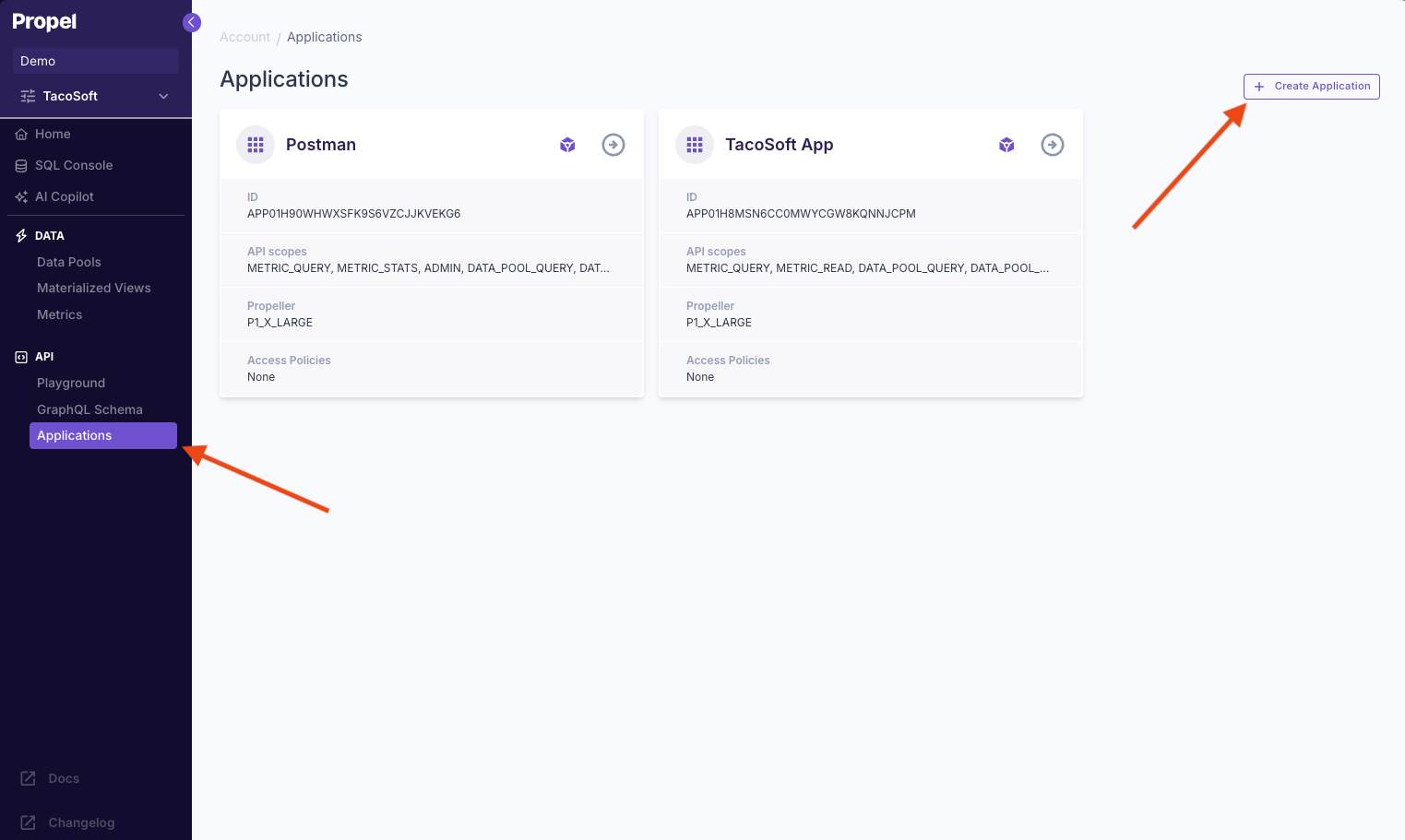 Give your Application a unique name. It should represent the app that will be using the SQL or API credentials.
 Scopes determine what the credentials will be allowed to do. To just query data, select the `DATAPOOL_QUERY` scope. Learn more about [scopes](#scopes).
 Propellers determine the speed and cost of your queries. A `P1_X_SMALL` is a good to start with. You can change it later if you need to. Learn more about [Propellers](#propellers).
 Lastly, click **"Create Application"**.
You must have the `APPLICATION_ADMIN` scope to create an Application.
```graphql theme={"system"}
mutation {
createApplication(
input: {
uniqueName: "Dashboard"
description: "My dashboard app"
scopes: [DATA_POOL_QUERY]
propeller: P1_X_SMALL
}
) {
... on ApplicationResponse {
application {
id
uniqueName
description
scopes
propeller
clientId
secret
}
}
... on FailureResponse {
error {
message
}
}
}
}
```
You must have the `application:admin` scope to create an Application.
```hcl theme={"system"}
resource "propel_application" "dashboard" {
unique_name = "Dashboard"
description = "My dashboard app"
scopes = [DATA_POOL_QUERY]
propeller = P1_X_SMALL
}
```
## Using credentials
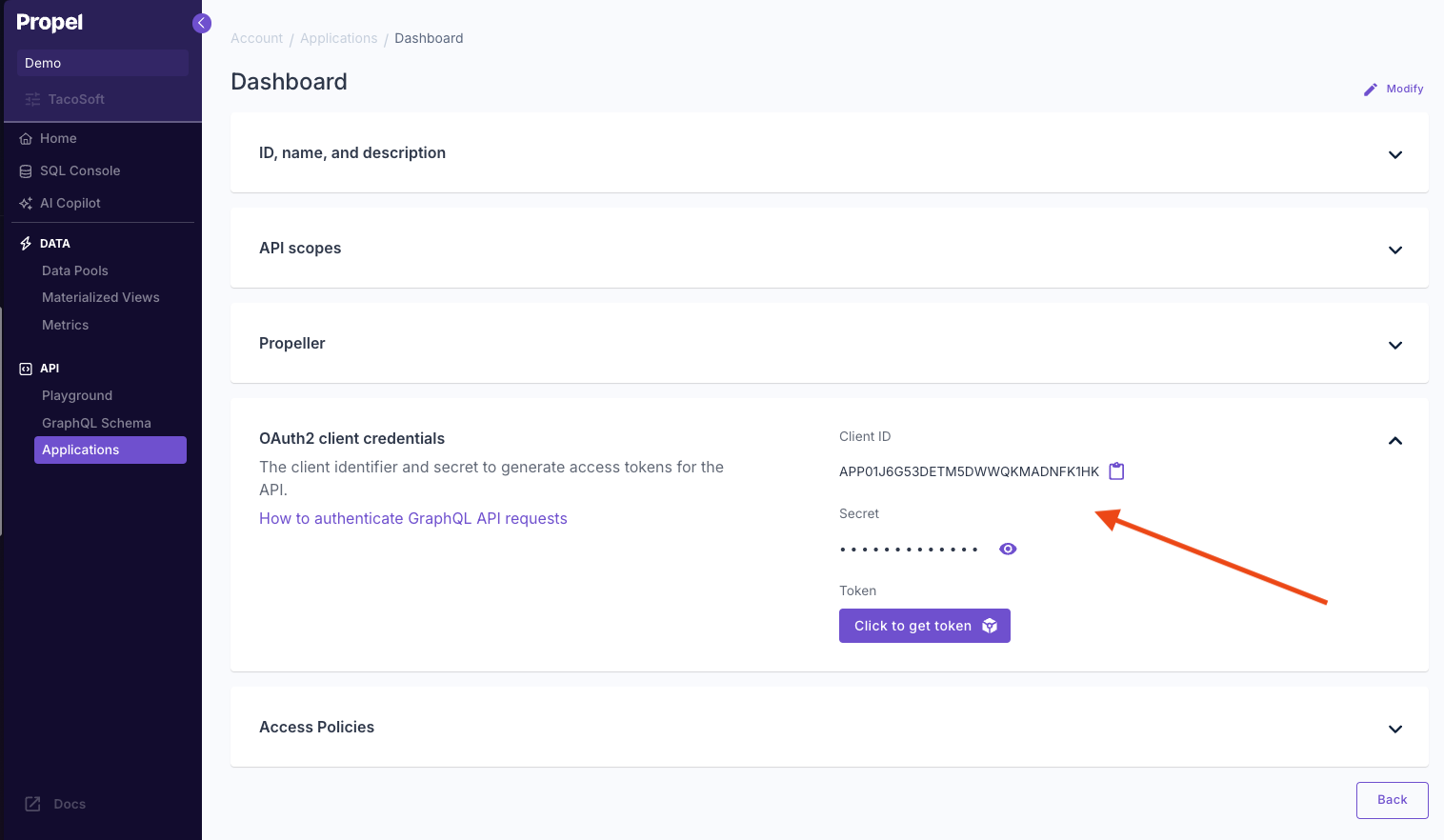
Now that you have your Application created, you can find your credentials on the Applications details page.
Lastly, click **"Create Application"**.
You must have the `APPLICATION_ADMIN` scope to create an Application.
```graphql theme={"system"}
mutation {
createApplication(
input: {
uniqueName: "Dashboard"
description: "My dashboard app"
scopes: [DATA_POOL_QUERY]
propeller: P1_X_SMALL
}
) {
... on ApplicationResponse {
application {
id
uniqueName
description
scopes
propeller
clientId
secret
}
}
... on FailureResponse {
error {
message
}
}
}
}
```
You must have the `application:admin` scope to create an Application.
```hcl theme={"system"}
resource "propel_application" "dashboard" {
unique_name = "Dashboard"
description = "My dashboard app"
scopes = [DATA_POOL_QUERY]
propeller = P1_X_SMALL
}
```
## Using credentials
Now that you have your Application created, you can find your credentials on the Applications details page.
 ### With SQL
You can use the client ID and secret as the user and password when [connecting to Propel via SQL](/docs/connect).
### With the API
To use your Application credentials with the Propel API, follow these steps:
1. **Obtain an Access Token**:
Use your client ID and secret to request an access token. This token will be used to authenticate your API requests.
```bash theme={"system"}
curl -X POST https://auth.us-east-2.propeldata.com/oauth2/token \
-d "grant_type=client_credentials" \
-d "client_id=YOUR_CLIENT_ID" \
-d "client_secret=YOUR_CLIENT_SECRET"
```
This request will return a JSON response containing your access token.
2. **Use the Access Token**:
Include the access token in the Authorization header of your API requests.
```bash theme={"system"}
curl -X POST https://api.us-east-2.propeldata.com/graphql \
-H "Authorization: Bearer YOUR_ACCESS_TOKEN"
```
Remember to keep your client credentials secure and never expose them in client-side code.
For a complete guide on API authentication, refer to our [API authentication guide](/docs/query-apis/authentication).
### With SQL
You can use the client ID and secret as the user and password when [connecting to Propel via SQL](/docs/connect).
### With the API
To use your Application credentials with the Propel API, follow these steps:
1. **Obtain an Access Token**:
Use your client ID and secret to request an access token. This token will be used to authenticate your API requests.
```bash theme={"system"}
curl -X POST https://auth.us-east-2.propeldata.com/oauth2/token \
-d "grant_type=client_credentials" \
-d "client_id=YOUR_CLIENT_ID" \
-d "client_secret=YOUR_CLIENT_SECRET"
```
This request will return a JSON response containing your access token.
2. **Use the Access Token**:
Include the access token in the Authorization header of your API requests.
```bash theme={"system"}
curl -X POST https://api.us-east-2.propeldata.com/graphql \
-H "Authorization: Bearer YOUR_ACCESS_TOKEN"
```
Remember to keep your client credentials secure and never expose them in client-side code.
For a complete guide on API authentication, refer to our [API authentication guide](/docs/query-apis/authentication).