Documentation Index

Fetch the complete documentation index at: https://www.propeldata.com/llms.txt

Use this file to discover all available pages before exploring further.

This guide will show you how to send JSON events to Propel over HTTPS from any application or SaaS service. You will learn how to:
  1. Create a Webhook Data Pool
  2. Send events to the Webhook Data Pool
  3. View your events in the Data Pool

Requirements


Step 1: Create a Webhook Data Pool

1

Navigate to Data Pools

In the Console, click on “Data Pools” in the left-hand menu. Click on “Create Data Pool” and select “Webhook”.
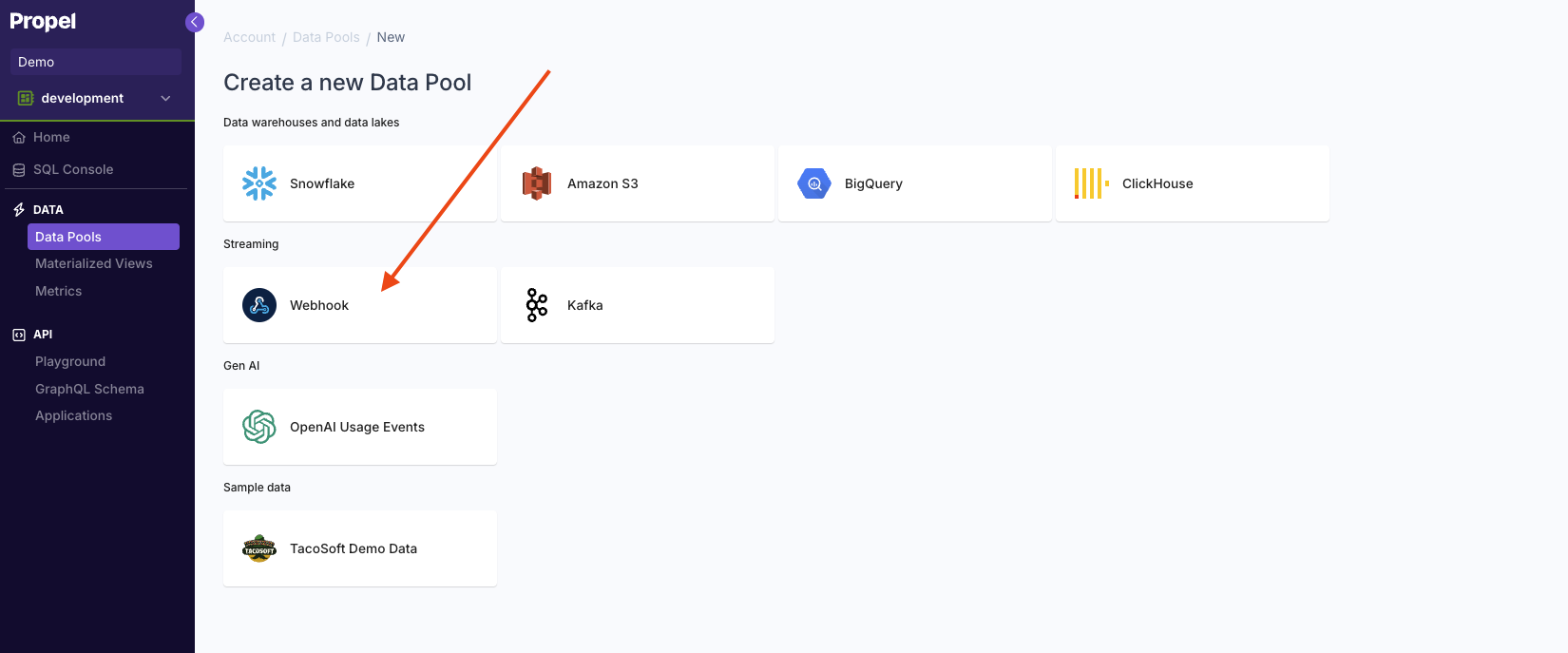
A screenshot demonstrating how to select a Webhook Data Pool in the Propel Console
2

Define the schema

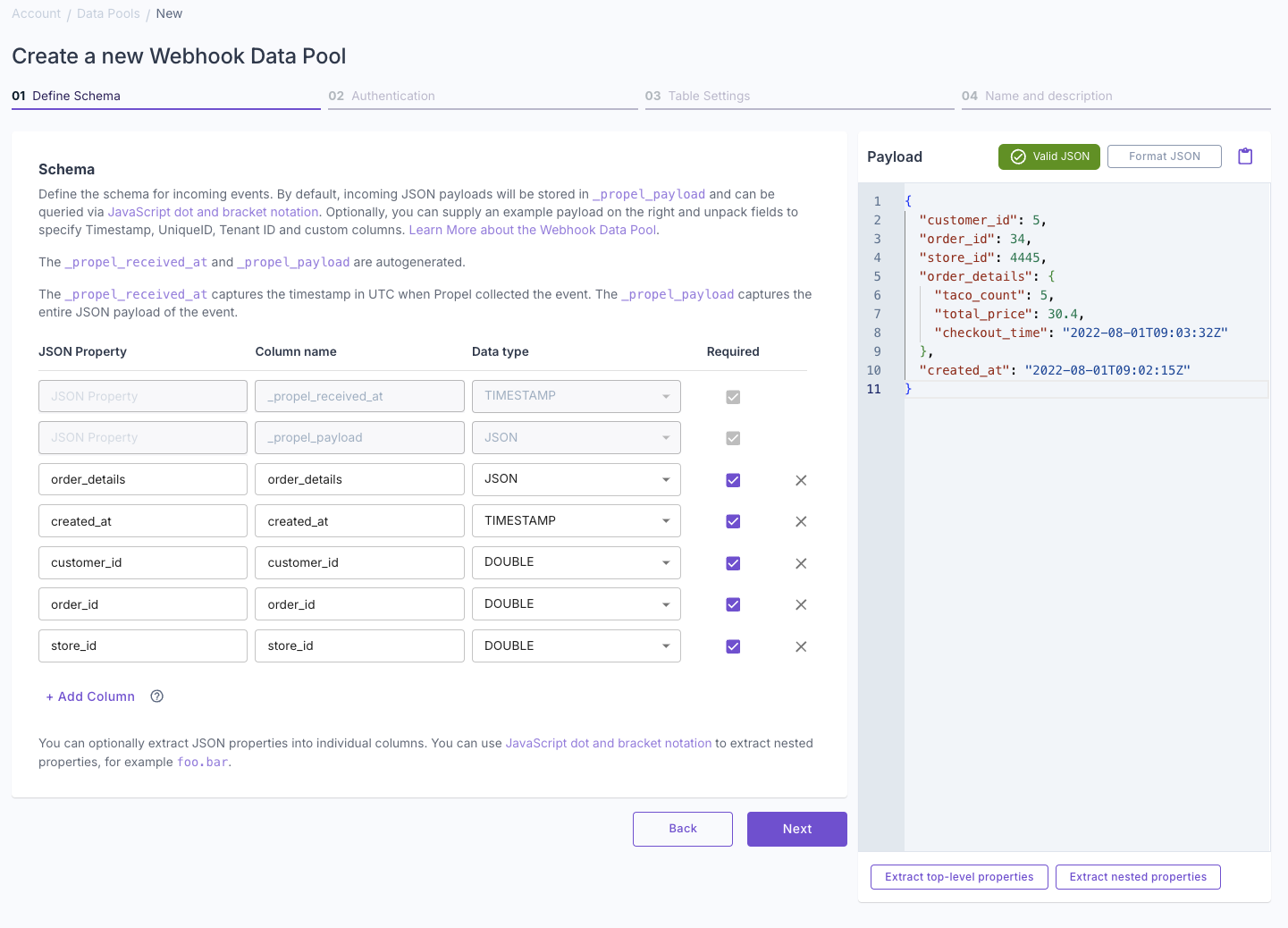
The default schema contains two columns:
ColumnTypeDescription
_propel_received_atTIMESTAMPThe timestamp when the event was collected in UTC.
_propel_payloadJSONThe JSON Payload of the event.
In the Payload section on the right-hand side, you can enter or paste a sample JSON event. This feature allows you to:
  1. Visualize the structure of your incoming data
  2. Automatically extract top-level and nested JSON keys
  3. Create specific columns for these extracted keys
A screenshot demonstrating how to define the schema for a new Webhook Data Pool in the Propel Console.
By providing a sample event, you can easily customize your Data Pool’s schema to match your data structure.For this guide, we’ll use the TacoSoft sample data:
{
  "customer_id": 5,
  "order_id": 34,
  "store_id": 4445,
  "order_details": {
    "taco_count": 5,
    "total_price": 30.4,
    "checkout_time": "2022-08-01T09:03:32Z"
  },
  "created_at": "2022-08-01T09:02:15Z"
}
After adding the sample JSON, click on “Extract nested properties” to create columns representing the nested JSON keys.Set created_at as your default timestamp. Click “Next”.
If a required field is missing from the sample event, Propel will reject the event with an HTTP 400 Bad Request error.
3

Configure Authentication

Configure authentication for your webhook URL:
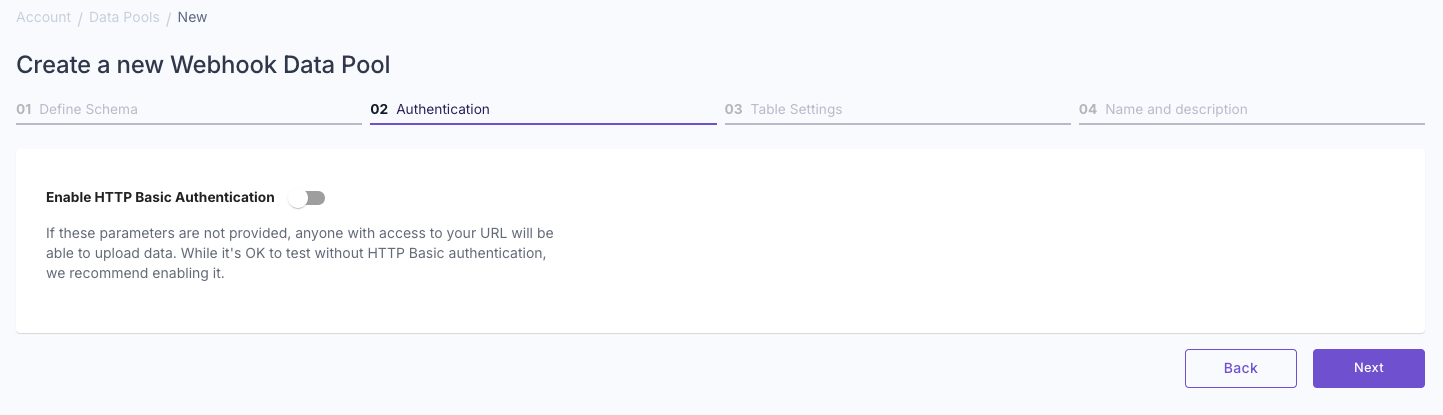
  • To enable HTTP basic authentication, specify a username and password.
  • For initial testing, you can leave these fields blank.
  • You can always edit these settings later.
After configuring (or skipping) authentication, click “Next” to proceed.
A screenshot demonstrating how to configure authentication for a new Webhook Data Pool in the Propel Console.
4

Configure data type and settings

Select whether your data is “Append-only” or “Mutable data”.To learn more, read out guide on Selecting table engine and sorting key.
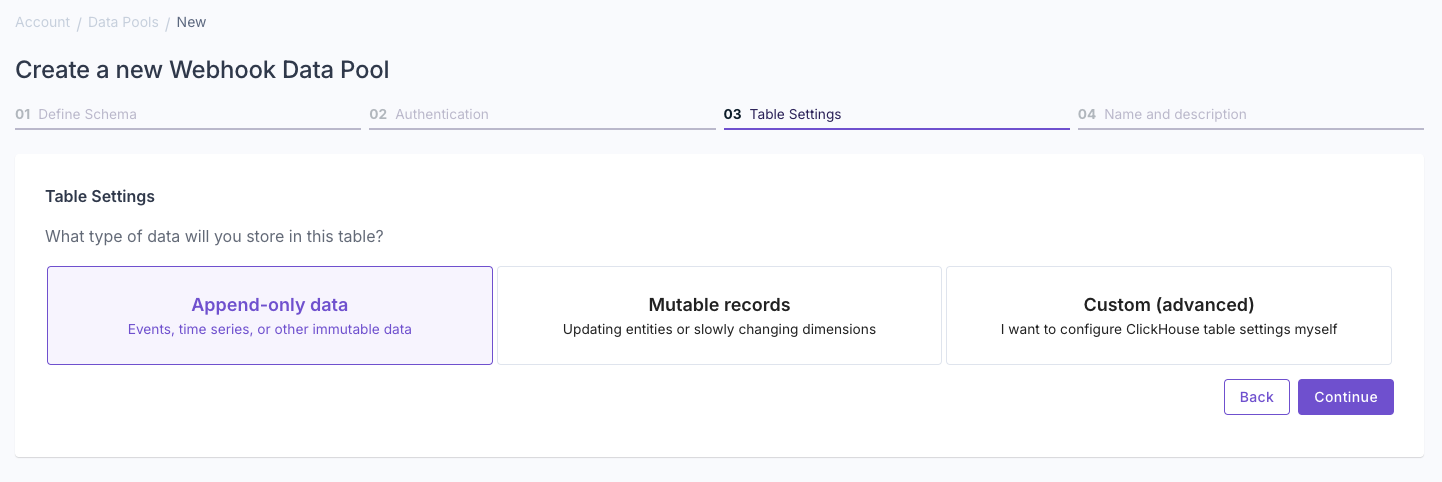
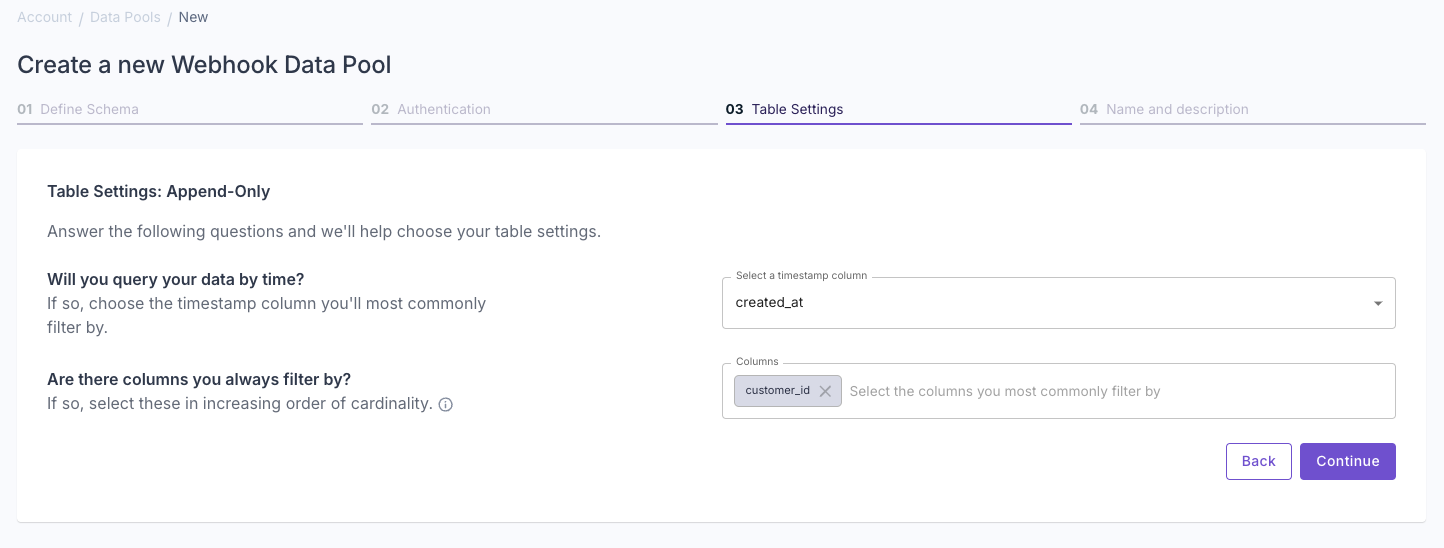
A screenshot demonstrating how to configure authentication for a new Webhook Data Pool in the Propel Console.
Answer the questions in the wizard to complete the setup.
A screenshot demonstrating how to configure authentication for a new Webhook Data Pool in the Propel Console.
Confirm your table settings and click “Continue”.
A screenshot demonstrating how to configure authentication for a new Webhook Data Pool in the Propel Console.
5

Set a name and description

Enter a name and description for your new Data Pool and click “Next”.
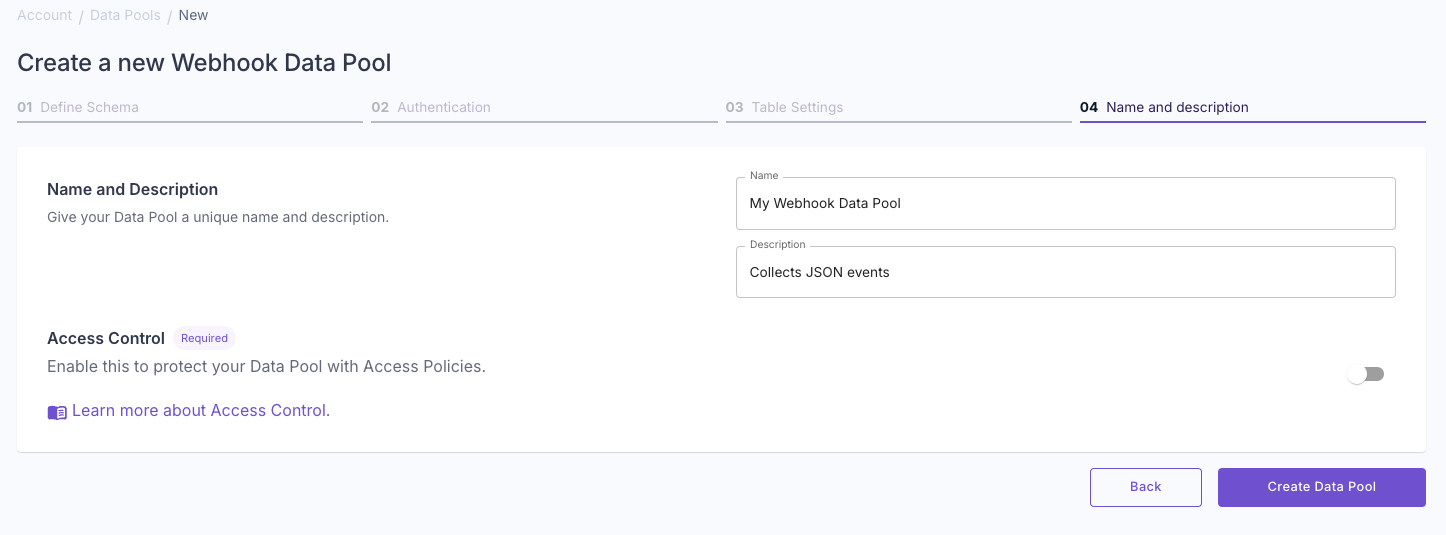
A screenshot demonstrating how to add a name and description to a new Webhook Data Pool in the Propel Console.
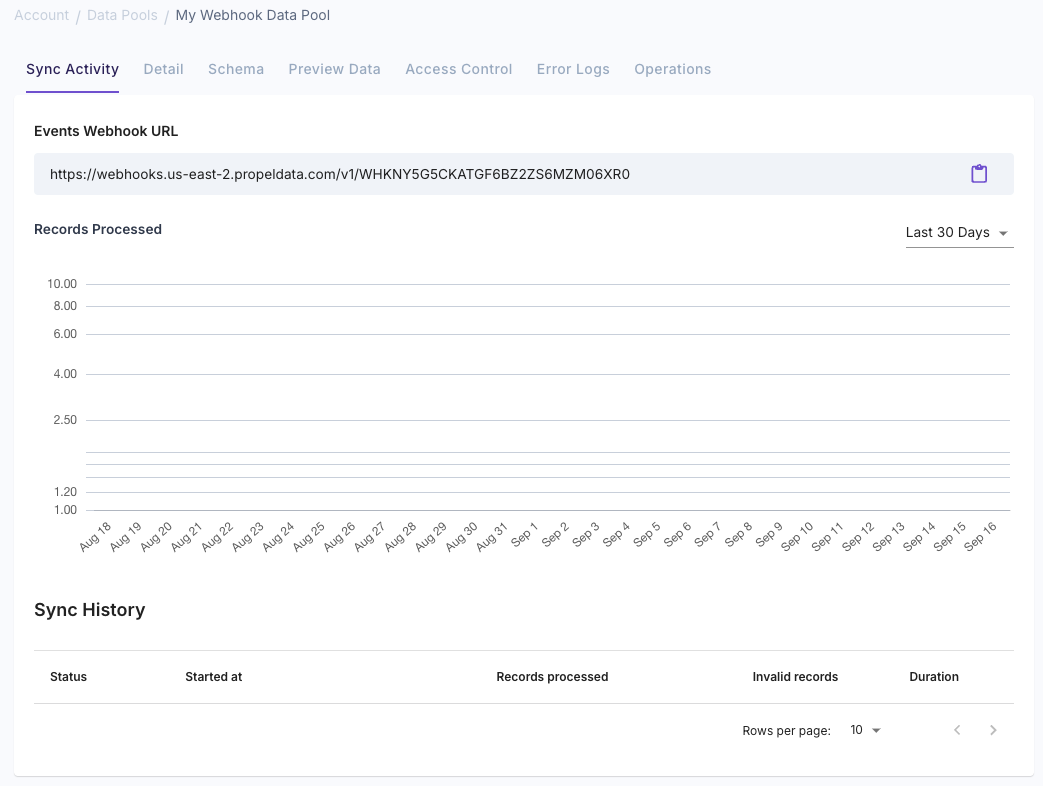
After creating the Data Pool, you’ll be provided with a unique HTTP URL. This URL is where you’ll send your JSON data for ingestion.
A screenshot demonstrating a new Webhook Data Pool in the Propel Console.

Step 2: Send events to the Webhook Data Pool

1

Prepare your data

Create a JSON array of events you want to send to the Webhook Data Pool.Here’s an example:
[
  {
    "customer_id": 5,
    "order_id": 34,
    "store_id": 4445,
    "order_details": {
      "taco_count": 7,
      "total_price": 25.90,
      "checkout_time": "2023-07-31T15:20:10Z"
    },
    "created_at": "2023-07-31T14:50:35Z"
  },
  {
    "customer_id": 8,
    "order_id": 22,
    "store_id": 1199,
    "order_details": {
      "taco_count": 3,
      "total_price": 15.75,
      "checkout_time": "2023-07-31T12:40:21Z"
    },
    "created_at": "2023-07-31T12:30:55Z"
  }
]
2

Send the data

Send a POST request to the Webhook Data Pool’s URL using curl or any HTTP client. Here’s an example using curl:
curl https://webhooks.us-east-2.propeldata.com/v1/WHK... \
-X POST \
-H "Content-Type: application/json" \
-d '[
  {
    "customer_id": 5,
    "order_id": 34,
    "store_id": 4445,
    "order_details": {
      "taco_count": 7,
      "total_price": 25.90,
      "checkout_time": "2023-07-31T15:20:10Z"
    },
    "created_at": "2023-07-31T14:50:35Z"
  },
  {
    "customer_id": 8,
    "order_id": 22,
    "store_id": 1199,
    "order_details": {
      "taco_count": 3,
      "total_price": 15.75,
      "checkout_time": "2023-07-31T12:40:21Z"
    },
    "created_at": "2023-07-31T12:30:55Z"
  }
]'
3

Check the response

You should expect a 200 OK with multiple “Event processed successfully” messages in the body of the response, one for each event.

Step 3: View your events in the Data Pool

1

Navigate to your Data Pool

Click on “Data Pools” in the Console, and then select your Data Pool.
2

View the data

Head over to the “Preview Data” tab, and you should see the events data as POSTed, reflected in the schema we defined.
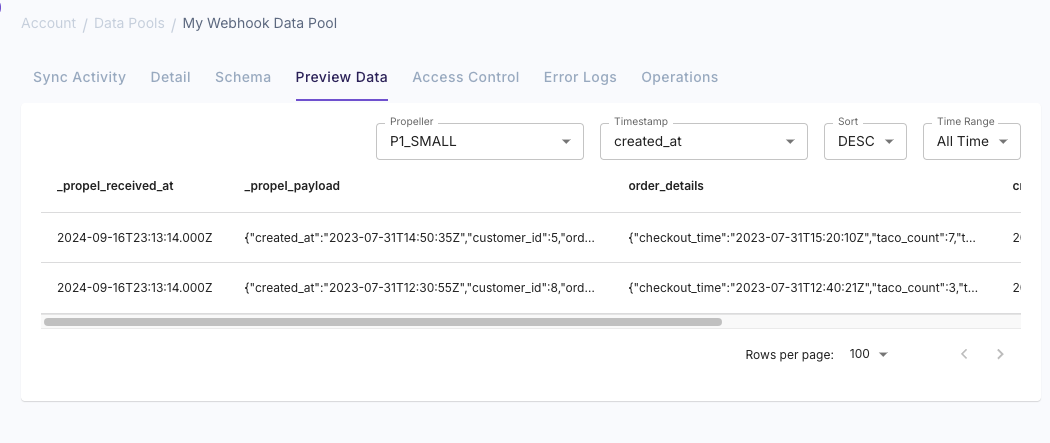
A screenshot demonstrating the Webhook Data Pool in the Propel Console.