

- Create a Propel Application.
- Create the destination in Fivetran.
- Create your first Fivetran to Propel connector.
Prerequisites
To connect Propel to Fivetran, you need the following:- A Propel account.
- A Fivetran account with permission to add destinations.
- The Propel Application must have the
ADMINscope.
1
Create a Propel Application
You must create a Propel Application. Propel Applications provide the API credentials, allowing the Fivetran destination to access the Propel API.Follow the guide to Create a Propel Application.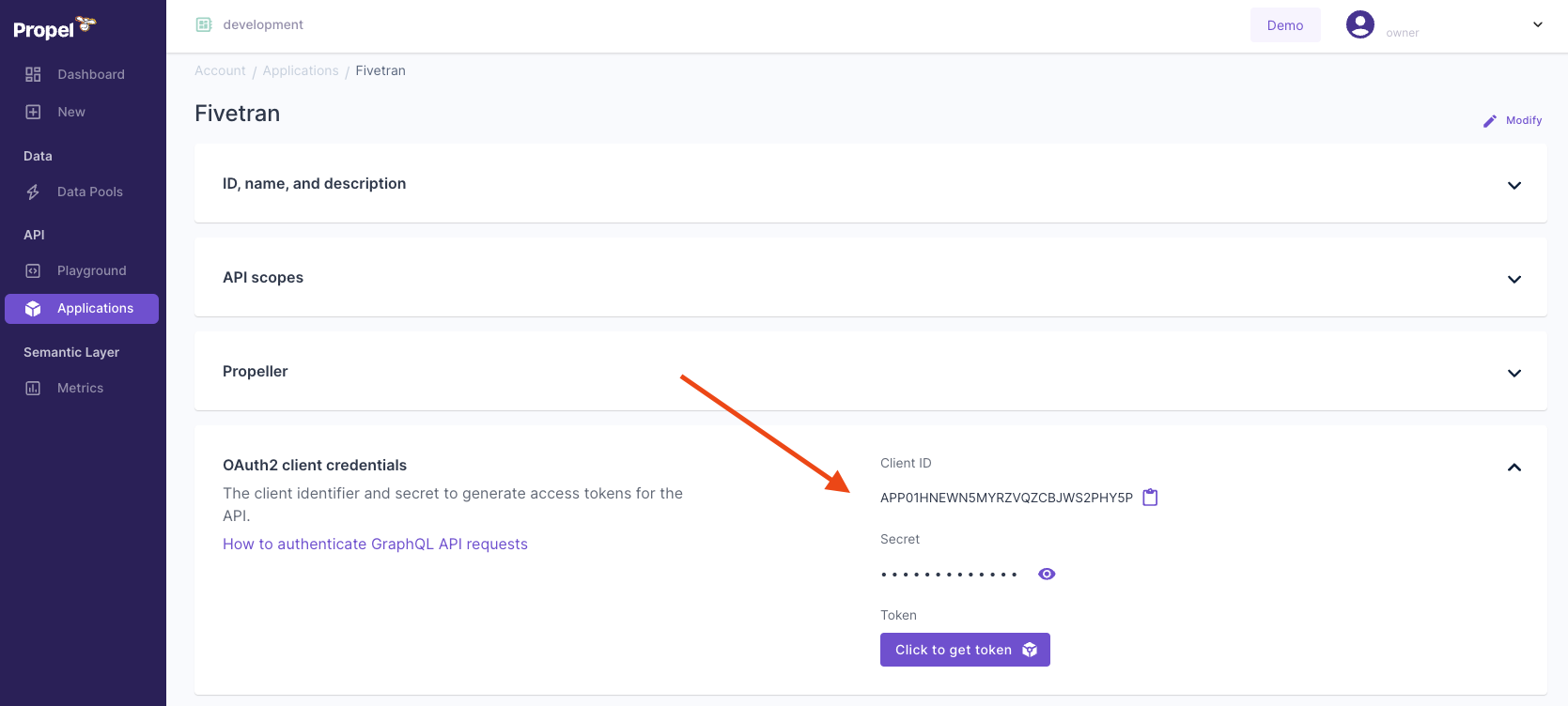
- Give it a Unique Name. For example, ‘Fivetran Destination’.
- Provide a Description. For example, ‘The Fivetran Destination app’.
- In the API scopes section, in the Scopes drop-down menu, select the
ADMINscope. - Select a
P1_X_SMALLPropeller. This is sufficient for Fivetran Applications.
2
Create the Fivetran destination
- Log in to your Fivetran account.
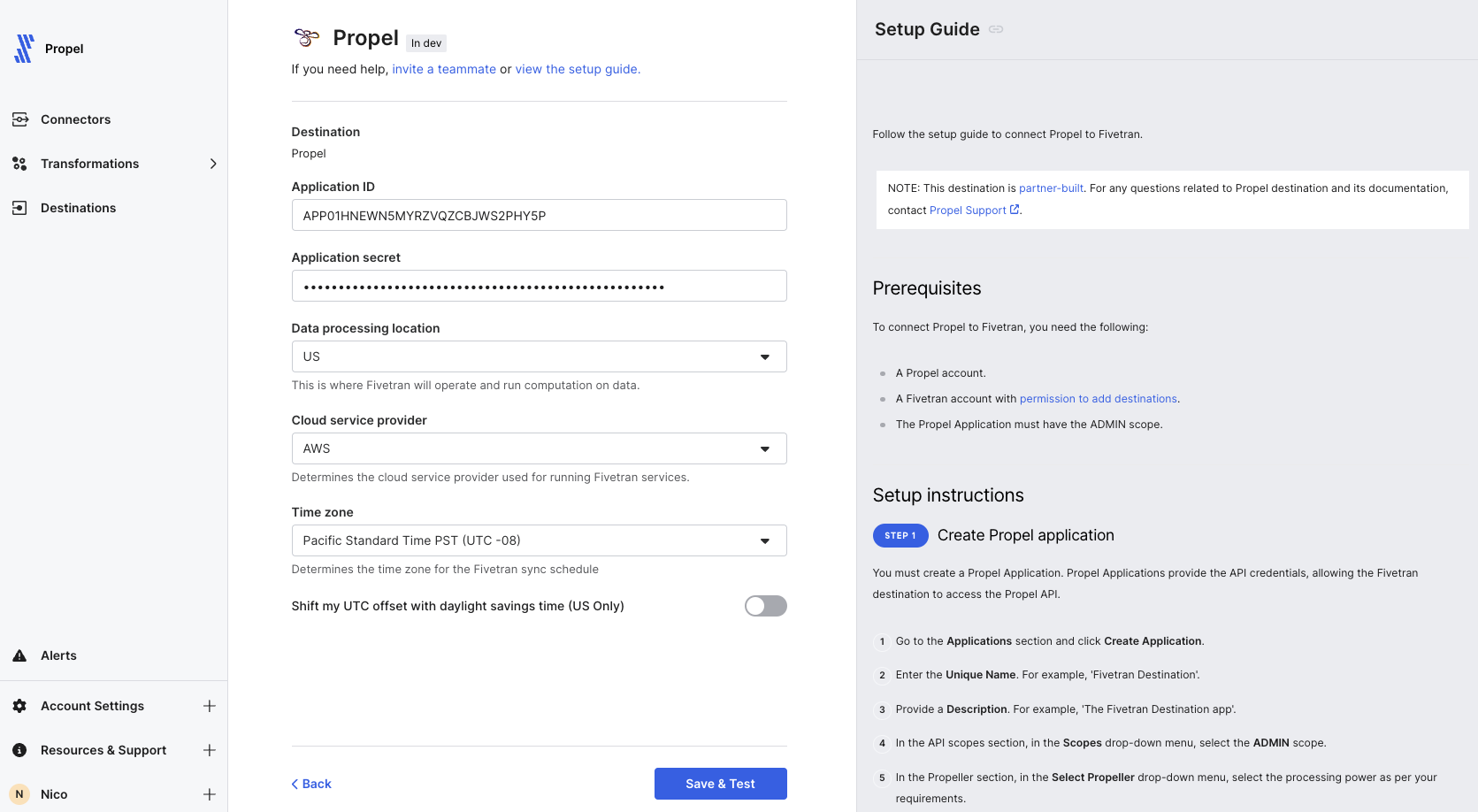
- Go to the “Destinations” page, and then click ”+ Add Destination”.
- Enter a “Destination name” of your choice.
- Click “Add”.
- Select “Propel” as the destination type.
- Enter the “Application ID” and “Secret” you found in Step 1.
- Choose the “Data processing location”.
- Choose your “Time zone”.
- Click “Save & Test”.
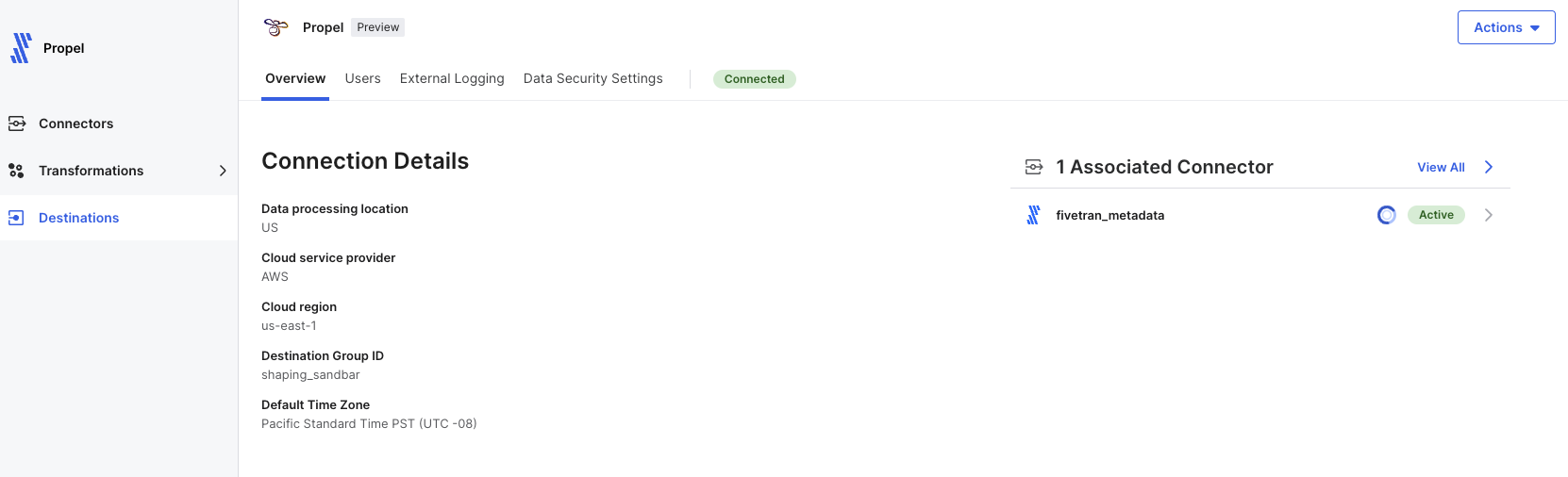
Setup tests
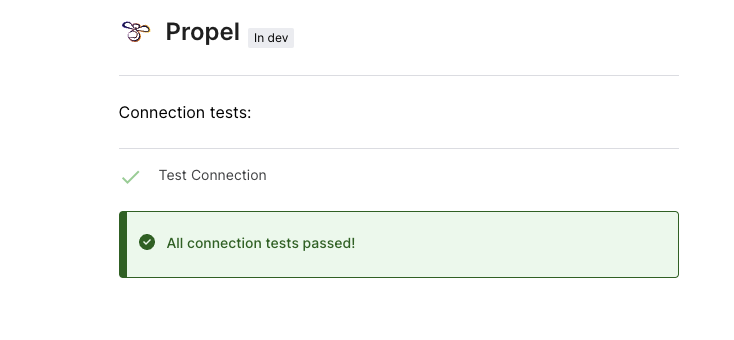
Fivetran performs the following Propel connection test:- The Connection test checks if we can connect to your Propel account through the API using the Application ID and secret you provided in the setup form.
3
Create your first Fivetran to Propel connector
- Go to the “Connectors” page, and then click + Add connector.
- Select the “Propel” destination you just created.
- Search for the source you need to sync. For example, “Salesforce”.
- Enter source’s configuration.
- Click “Save & Test”.